Download
Start your free trial.
Use Complex Chamfer inside Autodesk Fusion, or on its own with STL and 3MF files in Complex Chamfer Studio. One licence key works in both. The trial starts the first time you convert; enter a key whenever you're ready to buy.
Windows 10 or 11, 64-bit · The add-in needs Autodesk Fusion; Studio needs nothing else
Free trial
Everything, with nothing switched off, in the add-in and Studio together. The trial ends when the first of these runs out:
- Time
- 30 days
- Conversions
- 10 runs of the command
- Features
- 50 roofed features in total
Both always show what's left. Trial output carries the origin mark.
Requirements
- Add-in
- Autodesk Fusion, current release, any subscription including Personal use
- Studio
- Nothing else: opens STL and 3MF files
- System
- Windows 10 or 11, 64-bit
- Internet
- To start the trial and activate a key; licensed copies work offline up to 14 days
- Disk
- About 270 MB each
Install
Ready in a minute.
The add-in for Fusion
- Close Fusion, then run ComplexChamferSetup.exe. It installs for your Windows account and needs no administrator rights.
- Open Fusion. In Utilities > Add-ins, make sure Complex Chamfer is running. Tick Run on Startup to keep it loaded.
- Open a design with raised text or a logo on a flat face.
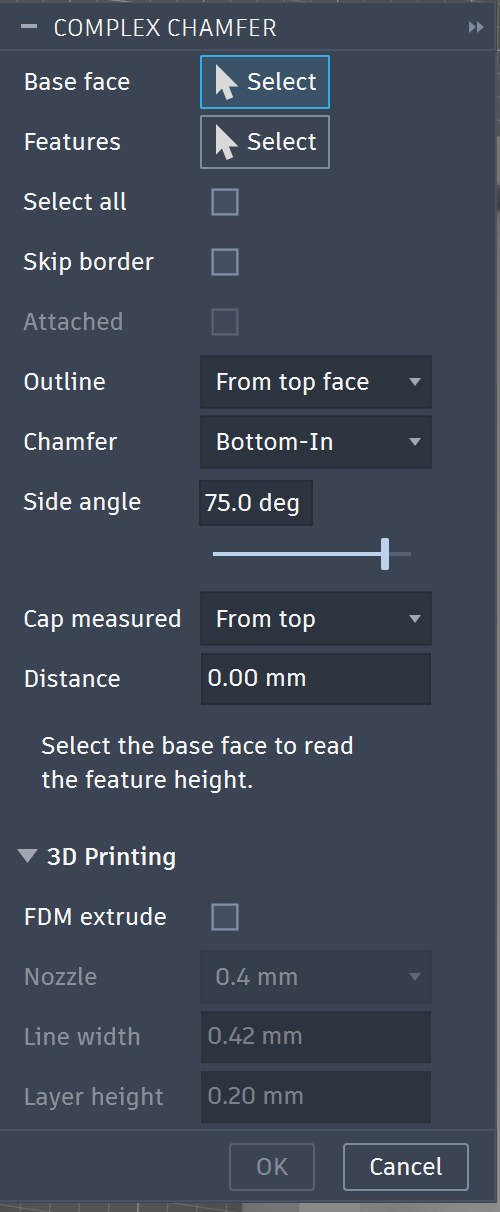
- Choose Modify > Complex Chamfer, pick the base face and features, and click OK. Your trial starts now.
Complex Chamfer Studio
- Run ComplexChamferStudioSetup.exe, then open Complex Chamfer Studio from the Start menu.
- Open an STL or 3MF, click the face your features stand on, choose the features, and click Convert.
Entering a key
- In Fusion, open Complex Chamfer License from Utilities > Add-ins. In Studio, click the licence line at the top of the window.
- Paste your key, CC-XXXXX-…, and activate it. It works in both on that computer.
Windows may ask you to confirm the first download of a new app. The installer is signed in our name; choose More info > Run anyway if SmartScreen asks.